
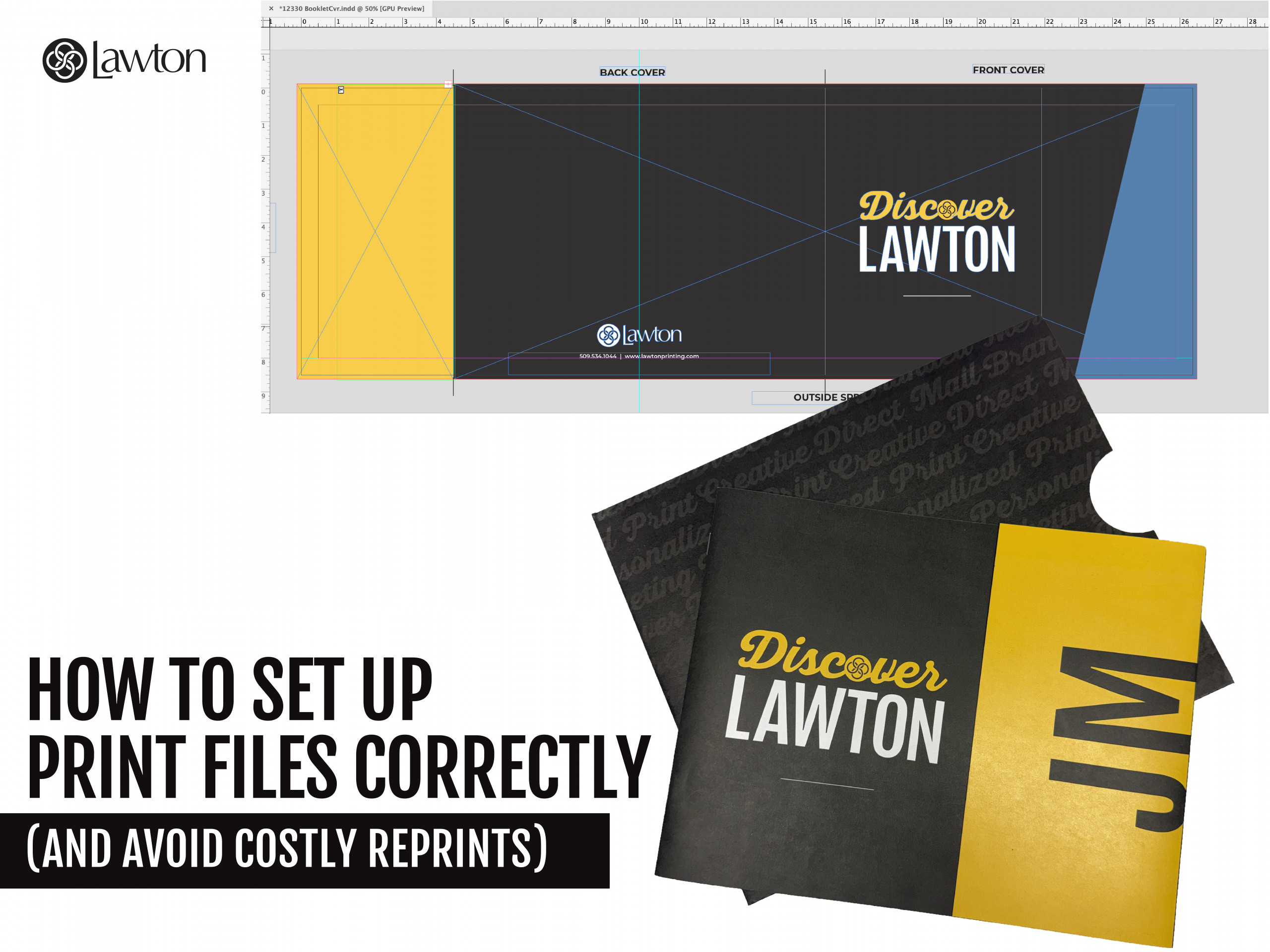
How to Set Up Print Files Correctly
(And Avoid Costly Reprints)
(And Avoid Costly Reprints)
There’s nothing worse than spending hours designing the perfect piece… only to see it come back with mistakes, color issues, or worse — needing a total reprint.
Setting up your print files correctly is the difference between smooth sailing and a printer headache. Here’s your go-to guide to make sure your designs hit the press perfectly the first time.
Start With the Right File Format
Not all files are created equal. Most professional printers prefer:
- High Quality Print or PDF/X-1a – preserves fonts, images, and color profiles. Don’t forget to include bleed when exporting!
- High-resolution images (300 DPI or higher) – blurry images are a designer’s nightmare
- Embedded fonts or outlined text – prevents font substitution disasters
- Multi-page documents should be sent as single pages – the printer will impose your project for optimal sheet utilization and single pages make it quick and easy for your pre-press tech to make it happen
💡 Tip: Keep your original design file (InDesign, Illustrator, or Photoshop) in case minor edits are needed later.
Set Up Bleed, Trim, and Safe Zones
Print is unforgiving. Crooked edges or text too close to the edge look amateur.
- Bleed: Extend your background 1/8” past the final trim size so nothing looks “cut off”
- Trim: The final size of the piece after cutting
- Safe zone: Keep all important text/logos at least 1/8” inside the trim
Think of it as a digital “margin of safety” — your printer will thank you.
Use the Correct Color Mode
- CMYK – for print. Colors translate more accurately from screen to paper
- RGB – for digital only. RGB can look bright on screen but dull in print
Using 100% black ink for large blocks of text is also preferable, it helps keep your text crisp and legible.
💡 Pro Tip: Keep in mind that some papers and finishes shift color slightly.
Overprint isn’t magic — it’s a trick for pros.
-
Setting colors or text to overprint without knowing what you’re doing usually makes things vanish… literally.
-
Colors can blend in weird ways, text can disappear, and your printer will silently judge you.
✅ Only use overprint when it’s intentional. Otherwise? Keep it simple, keep it visible, and keep your print job looking awesome.
Check for Fonts and Text Issues
- Outline all fonts in Illustrator or InDesign, or embed them in PDFs
- Avoid tiny text for small prints (anything under 6 pt can disappear on press)
- Use consistent font weights to prevent unwanted surprises
Review Folding, Binding, and Special Finishes
If your piece folds, has multiple pages, die cuts, or includes embossing/spot UV:
- Include die lines for folds, die cuts, emboss/deboss elements
- Save your die line as a separate file, and keep it on a separate layer
- Mark page numbers clearly
- Specify finishes in your notes to the printer at the start of your project
These details ensure your final piece matches your design intent.
Always Do a Proof
- Soft proof: On-screen PDF check
- Hard proof: Printed sample if possible
It may feel like extra work, but catching issues before mass printing saves money, time, and headaches.
💡 Pro Tip: Step away from your design for an hour (or overnight) before reviewing the proof — fresh eyes catch mistakes you’ll miss otherwise. You may also benefit from having a coworker or friend review your design.
The Bottom Line
Setting up print files correctly isn’t rocket science, but it does require attention to detail. Follow these steps:
- Correct file format
- Bleed, trim, safe zones
- CMYK color mode
- High-resolution images
- Font management
- Folding/binding/finishes
- Proof review
Do it right, and you avoid costly reprints, wasted materials, and stress — all while looking like a printing rockstar.
Need a hand with your files or want us to review before you hit print? Let’s make sure your project comes out perfect the first time.
TL;DR
Set up your print files right the first time.
Use the correct file format, CMYK color mode, 300 DPI images, proper bleed and trim, and outline fonts. Proof before printing to avoid costly reprints.
If you need help setting up your file, have questions, please don’t hesitate to give us a call. We are happy to help!
CALL LAWTON TODAY
509-534-1044
🚫 Don’t Send This to Print
Your printer does NOT want these files:
- Native design files (InDesign, Illustrator, Photoshop)
- PNGs or low-res images
- Microsoft Publisher or PowerPoint files
- Random downloads from the internet
Why? Fonts go missing, colors shift, and images pixelate — basically, chaos.
✅ Do this instead: Export a high-resolution PDF with embedded fonts and linked images. Your printer will love you… and your print job will actually look amazing.